
SMS and WhatsApp
Besides the emails, Nevua can send the confirmation, the reminder (with its confirm link), the cancellation and the waitlist offer by SMS and WhatsApp. Everything is under Nevua → Notifications.
The client’s phone
Messages go to the phone the client gave on the form; clients who left it empty get only the emails. Clients type their number the way they dial it at home, and Nevua adds the country code, taken from your site’s language (Brazilian Portuguese: +55; Mexican Spanish: +52…). A number typed with + or 00 is used as is. If your site’s language isn’t your clients’ country, set the code with the nevua_phone_country_code filter.
| Channel | Providers |
|---|---|
| SMS | Twilio or Brevo |
| Twilio |
1. Connect a provider (Providers tab)
- Twilio: create an account and copy the Account SID and Auth Token from the Console. Buy a number that can send SMS to your clients’ country. In Nevua, turn on Enable Twilio, paste the details and enter the SMS Sender Phone (E.164), such as
+15551234567. - Brevo (SMS): create an account, turn on transactional SMS and create an API key. In Nevua, turn on Enable Brevo, paste the key and set the SMS Sender Name: up to 11 letters or digits, or a phone number.
Test connection says what would stop the messages, such as a Twilio trial account (which only reaches numbers verified in it).
2. Switch the channels on (Channels tab)
Turn on Enable SMS Notifications and/or Enable WhatsApp Notifications and pick the Default SMS Provider and Default WhatsApp Provider. A channel on with no provider sends nothing, and the tab warns about it. Enable message logging keeps every message under the Logs tab: when, to whom, through which provider and whether it went out.

3. SMS texts (Templates tab)
Each message has an editable SMS text with variables such as {customer_name}, {service_name}, {booking_date}, {booking_time} and {confirm_link}. Keep SMS under 160 characters: longer ones count as more than one SMS.
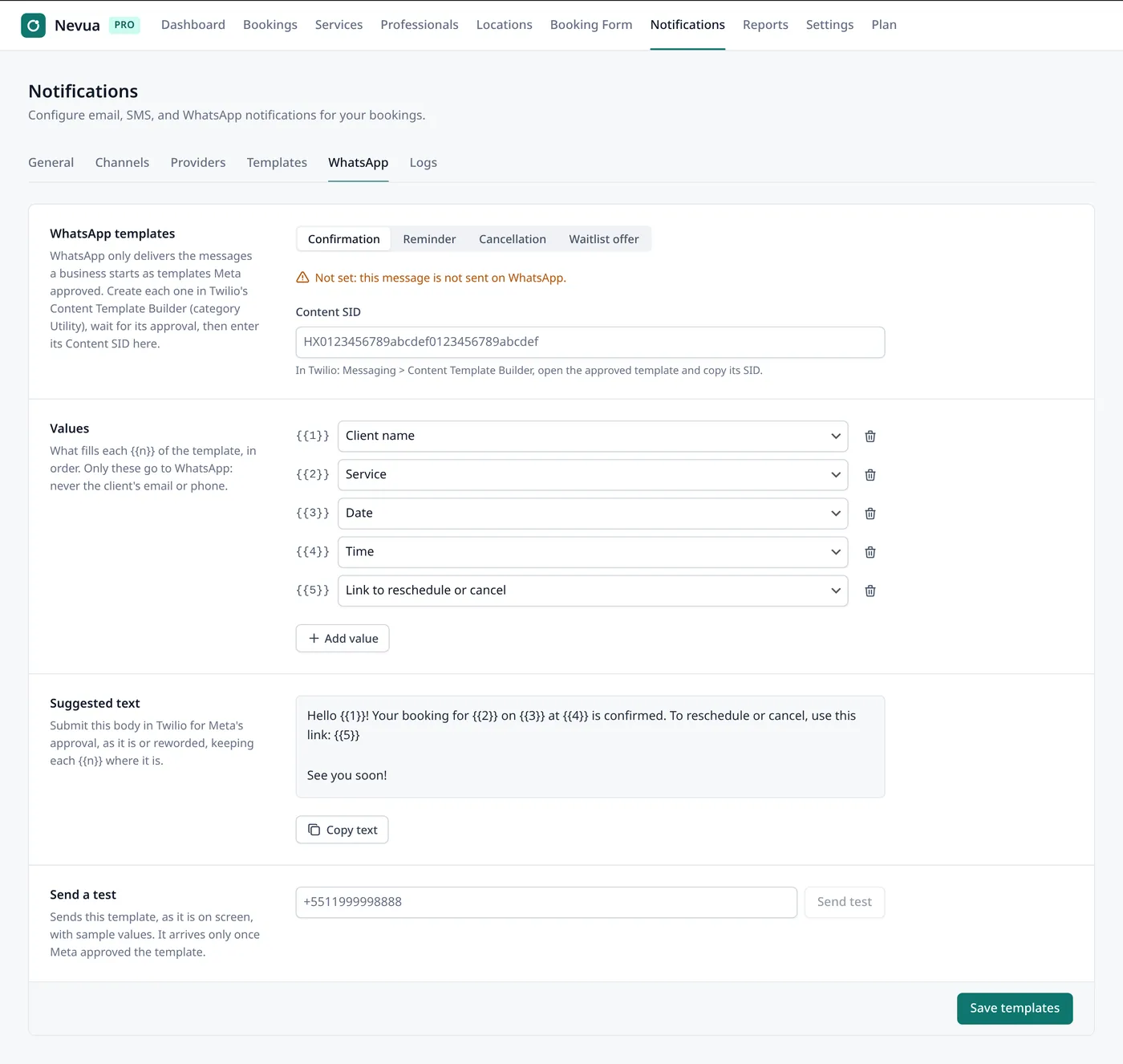
WhatsApp only delivers messages a business starts if they use a template Meta approved. So Nevua sends WhatsApp only through templates you create once in Twilio:
- In Twilio, register your WhatsApp sender (your business number). Twilio guides you through Meta’s business verification.
- In Nevua, under Providers → Twilio, enter the WhatsApp Sender Phone.
- Under Notifications → WhatsApp, each message (confirmation, reminder, cancellation, waitlist offer) has a Suggested text. Use Copy text, create a template with it in Twilio’s Content Template Builder and submit it for approval.
- Once approved, copy its Content SID (starts with HX, 34 characters) into Nevua.
- Check which value goes into each
{{n}}; Use the suggested values matches the suggested text. - Save templates, then Send a test to your own WhatsApp.
A message without a Content SID isn’t sent on WhatsApp (the log says why). Only the values you map go to WhatsApp, never the client’s email.
Costs
Twilio and Brevo charge per message, and Meta charges per WhatsApp conversation. These go to your account with them; Nevua adds nothing.