
Online payments
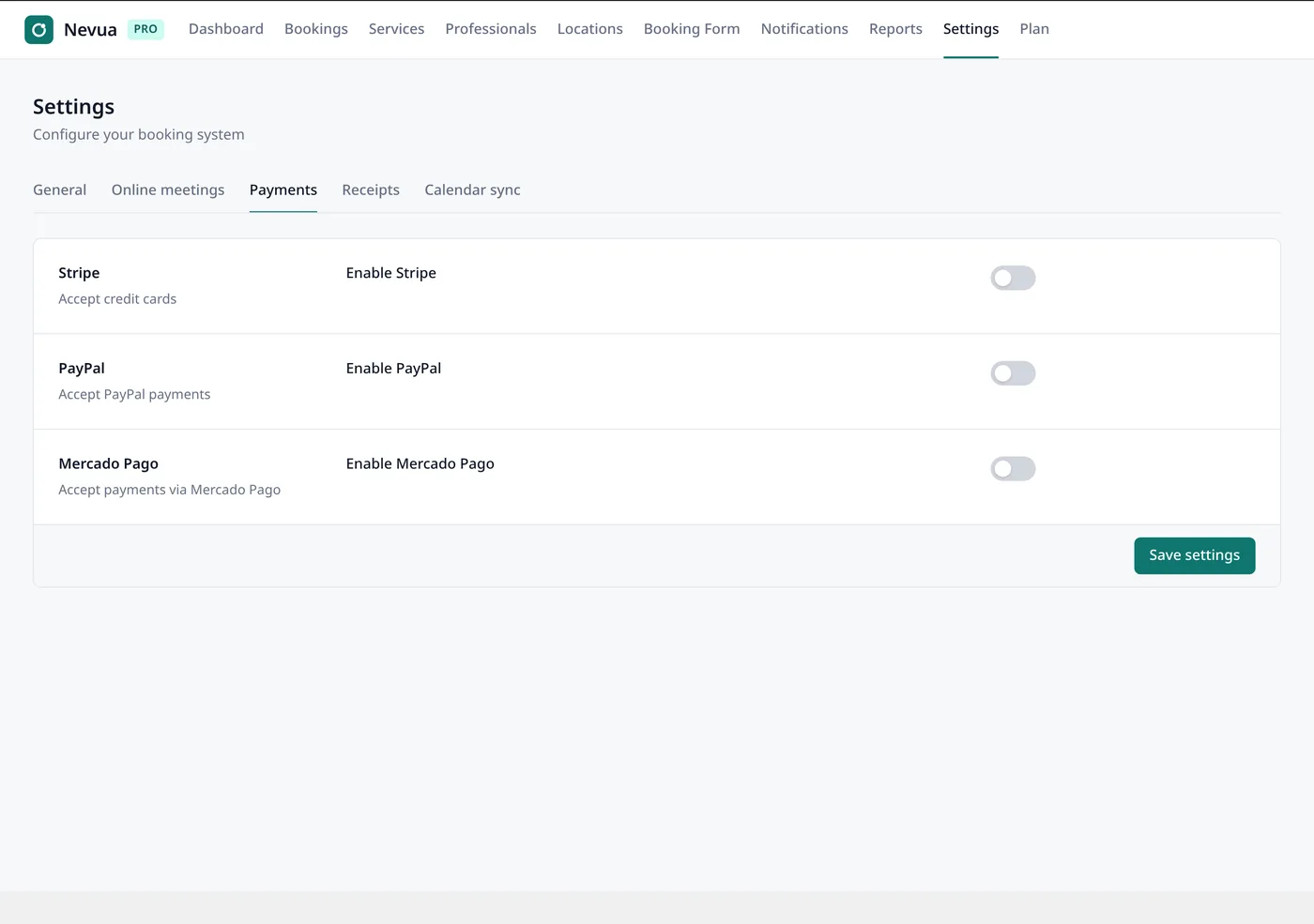
Clients pay when they book: card (Stripe), PayPal, Mercado Pago or Pix. Switch on the ones you want under Nevua → Settings → Payments.
Before you start
Your site must be on https and reachable from the internet: payment gateways confirm each payment by calling your site, and they only reach a public https address.
How a paid booking works
- The client picks a service with a price and a time.
- Nevua holds that time for 30 minutes while they pay. Nobody else can take it meanwhile.
- The client pays on the form (or on Mercado Pago’s page).
- The gateway tells your site, and the booking is confirmed. Only then do the confirmation and new-booking emails go out.
- No payment within 30 minutes: the time is free again.
The confirmation comes from the gateway, not only from the client’s browser: a client who closes the tab right after paying still has their booking. The amount charged is the service’s price (or its deposit, or a package’s price) read from your settings at that moment; the browser can’t change it. Bookings you make in the admin never ask for payment.
Stripe (cards)
- In the Stripe dashboard’s developer area, copy the publishable key (
pk_…) and the secret key (sk_…). - In Nevua, switch on Stripe and paste both into Publishable key and Secret key.
- In Stripe, create a webhook with the Webhook URL Nevua shows (Copy button) and the events
payment_intent.succeededandcharge.refunded. - Copy that webhook’s signing secret (
whsec_…) into Webhook secret and save.
The form shows the methods switched on in your Stripe account that confirm at once, such as cards, Apple Pay and Google Pay. Methods that take days to settle (boleto, bank debits) are left out, because the time is held for only 30 minutes.
Test first: use your test keys (pk_test_…, sk_test_…) and the card 4242 4242 4242 4242, with any future date and any CVC.
PayPal
- In PayPal’s developer dashboard, create an app and copy its Client ID and secret.
- In Nevua, switch on PayPal, paste both and turn Sandbox mode off for real payments.
- In the app’s webhooks, add the Webhook URL Nevua shows, with the events
CHECKOUT.ORDER.APPROVED,PAYMENT.CAPTURE.COMPLETEDandPAYMENT.CAPTURE.REFUNDED.
PayPal takes BRL, USD, EUR and MXN only. In another currency it isn’t offered on the form.
Mercado Pago and Pix
- In Mercado Pago Developers, create an application and copy its Public key and Access token (
TEST-…for testing,APP_USR-…for real payments). - In Nevua, switch on Mercado Pago, paste both and turn Sandbox mode off for real payments.
- Under Your integrations → Webhooks, add the Webhook URL Nevua shows and turn on the Payments event. Optional: copy the webhooks’ secret key into Nevua, so it takes only notifications Mercado Pago signed.
The client pays on Mercado Pago’s page and comes back to your form. Pix appears as its own option when Mercado Pago is on and your currency is BRL: the client gets a QR code and a copy-and-paste code, which expires with the 30-minute hold.
Mercado Pago takes ARS, BRL, CLP, COP, MXN, PEN, UYU and USD, each in the country of your account.
Refunds
- A payment that arrives too late: the client paid after the 30 minutes and someone else took the time. Nevua refunds it at once through the gateway and emails the client. If the gateway refuses, you get an email asking you to refund it.
- The client cancelled in time a booking paid online: you get an email with the amount. Open the booking in Nevua → Bookings and click Refund. The money goes back the way the client paid.
- You cancelled a booking paid online: open it and click Refund too.
- A refund made in the gateway’s dashboard: a full refund cancels the booking in Nevua and frees the time.
- Money received at the visit doesn’t go through the gateway: return it yourself.