
Getting started
How to install Nevua, add a service, check your working hours and put the form on a page.
Before you start
You need a WordPress site on 6.2 or later, with PHP 8.2 or later. Your host tells you the PHP version, and WordPress shows both under Tools → Site Health → Info.
1. Install and activate
In Plugins → Add New Plugin, search for “Nevua Booking”, install it and activate it. If you have the zip file, use Upload Plugin on the same screen.
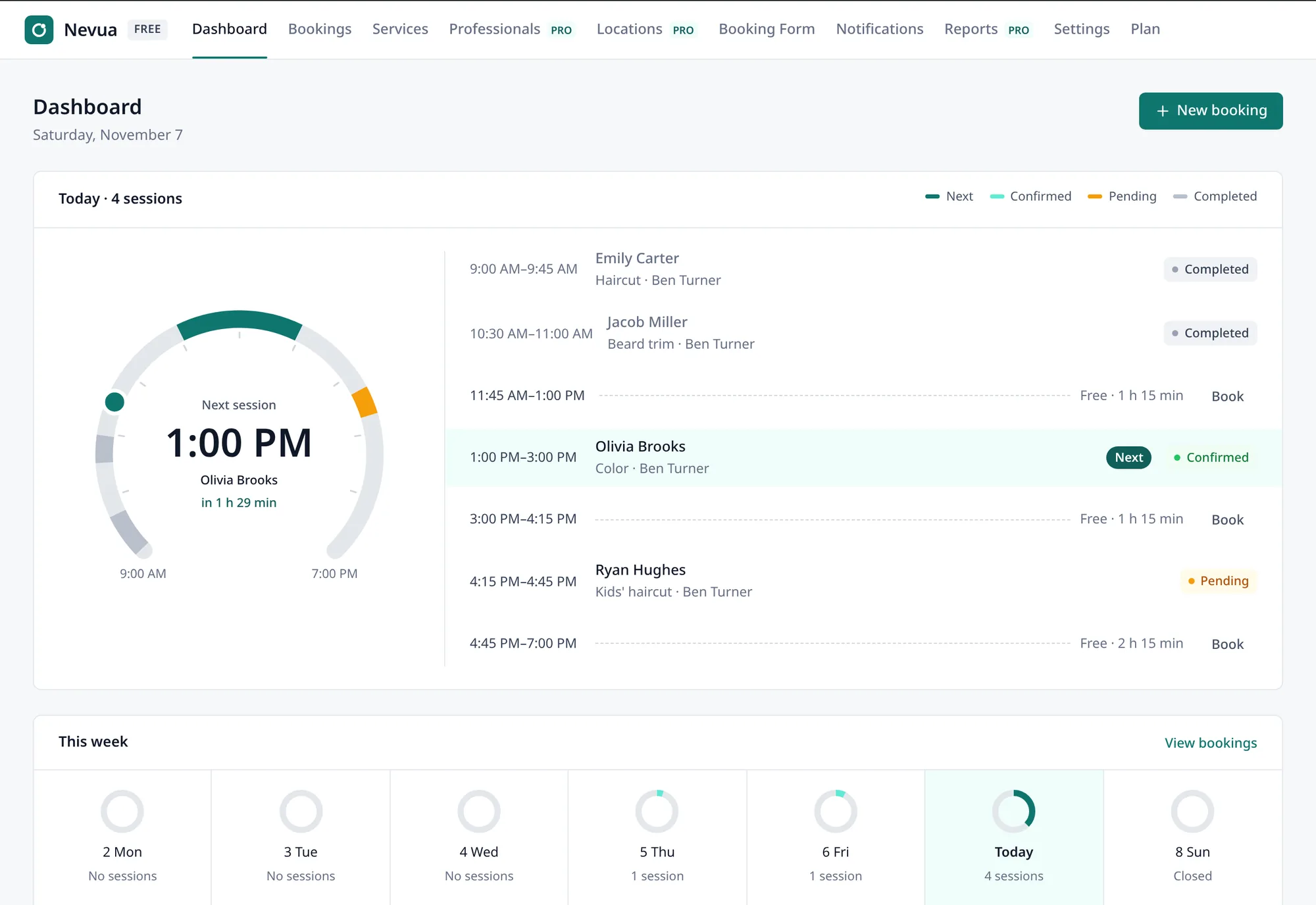
The Nevua menu appears in the sidebar. Its Dashboard shows the list Get ready to take bookings until you finish the two steps below.
2. Add your first service
In Nevua → Services → Add service, give it a name, a length and a price. A service is what clients book: a haircut, a consultation, a class. A price of 0 makes it free.
The Break Time (15 minutes unless you change it) is free time after each appointment before the next one can start. Use 0 for back-to-back sessions.
3. Check your opening hours
In Nevua → Settings → General, tick the days you work and set the hours of each. Clients only see times inside those shifts. Days off, booking notice and currency are on the same screen. See Services, hours and settings.
4. Put the form on a page
On the Dashboard, the Create booking page button publishes a page called “Book online” with the form on it. Link it from your site’s menu or share its address.
To place the form anywhere else, use the Booking form block or the
shortcode. See The booking form.
5. Test it as a client
Open the page in a private window, logged out, and book a time. You get the new booking email, the client gets the confirmation with a calendar file, and the booking shows up under Nevua → Bookings.
Before you open to clients
- Emails: WordPress sends Nevua’s emails. Many hosts deliver them to spam unless the site uses an SMTP plugin. Do the test in step 5 with an email address of yours at another provider.
- Reminders: WordPress runs scheduled tasks, such as reminders, only when someone visits the site. For reminders on time, ask your host for a cron job that calls
wp-cron.phpevery few minutes. - Time zone: Nevua uses the time zone in WordPress’s Settings → General. Pick your city, not a UTC offset, so daylight saving time is followed where it applies.